Installing Windows network shared printers in Mac OS X is easier than it used to be. However, some users will need a bit of help the first time they go through this procedure. To help them out, we decided to publish this detailed step by step tutorial.
NOTE: This guide was updated for Mac OS X Mountain Lion (version 10.8).
Important Prerequisites - To do in Windows 7 or Windows 8
First, you need the printer to be correctly installed in Windows 7 and Windows 8. Verify that it works correctly and that you can print.
Then, you need to share it with the rest of the network. This detailed tutorial will help you get started: How to Share a Printer with Your Network in Windows 7 and Windows 8.
Important Prerequisites - To do on your Mac OS X
It is very important that both your Mac and Windows 7 or Windows 8 PC or device are part of the same workgroup. Here are some guides you need to read, to get things configured correctly:
- How to Change the Workgroup in Mac OS X for Easy Networking
- How to Change the Workgroup in Windows 7 & Windows 8
On your Mac OS X, you need to download the appropriate drivers for the shared printer you want to install. If you don't find any drivers, there are some chances that appropriate drivers are bundled with OS X. If they are not, then your last chance is to use the Generic PostScript Printer as the driver. However, this generic driver doesn't provide many customization options and, with some printers, it may cause erratic behavior.
Install a Windows 7 or Windows 8 Network Shared Printer in Mac OS X
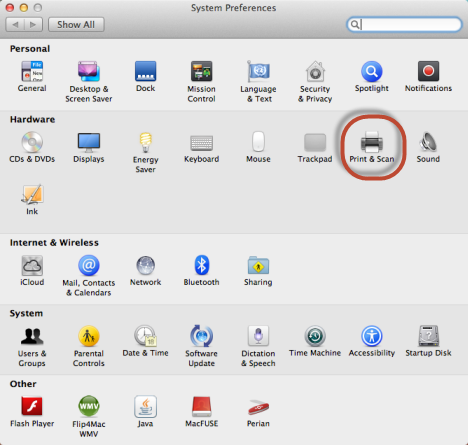
Open System Preferences. In the Hardware section, click Print & Scan.
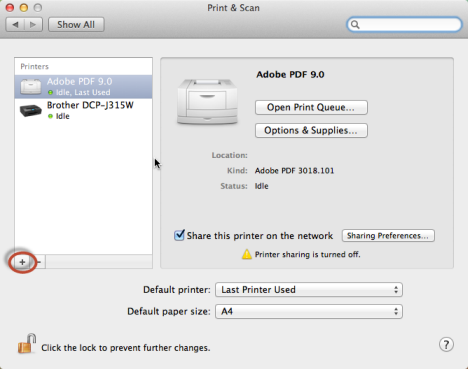
The Print & Scan window opens. Click the + button beneath the Printers section.
The Add window opens, where you can add the network shared printer you want to install. Here, click the Windows section.
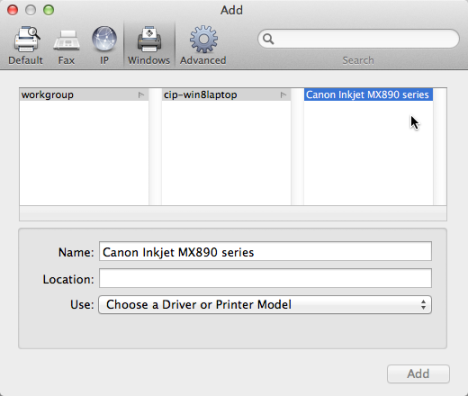
Then, click the Workgroup to which both your Mac and Windows computer/device belong to. Click the name of the Windows computer/device sharing the printer and its shared printers are displayed. Also, click the printer you want to install on your Mac.
Then, in the Name field, type a custom name for the printer, if you are not happy with the default one.
Then, click the Use dropdown to select the drive you want to use for this printer.
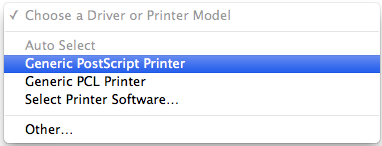
IMPORTANT: If you have a Mac OS X driver downloaded for this printer, select Other and then the driver you downloaded. If you did not find an OS X driver for it, click Select Printer Software and then browse through the drivers bundled with OS X. You may find a driver that's appropriate for your printer. If you still don't find a driver, then simply select Generic PostScript Printer.
Select the driver you want to use and click Add. OS X allows you to set up the printer and how it will print. The available configuration options will vary depending on the printer installed and its drivers.
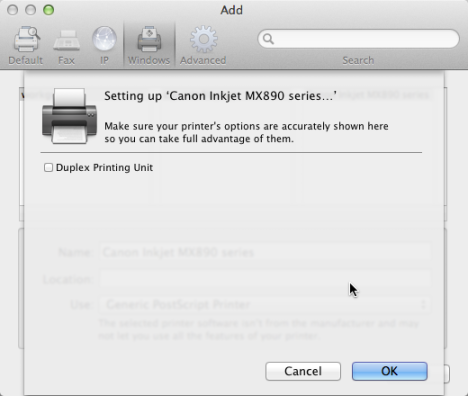
Configure the printer and click OK. Then, you are returned to the Print & Scan window, where you can view the newly installed printer.
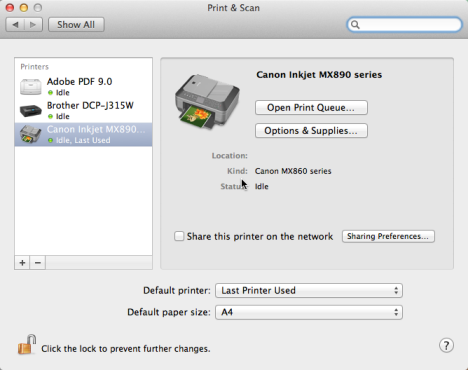
The Windows shared printer is now installed and can be used on your Mac OS X to print documents and other items.
Conclusion
Fortunately for everyone, printing from Mac OS X to a Windows 7 or Windows 8 shared printer is easier than it used to be. The process is still error prone but less than it was in the past. If you had issues following this guide or you know better ways to make things work, don't hesitate to leave a comment below.