Modern versions of Windows offer many tools that you can use to manage different aspects of the operating system. One lesser known administrative tool in Windows is named Computer Management. Few people know of its existence, and even fewer use it. Over the years, we have come to love Computer Management, and we use it more often than other similar tools from Windows. In this article, we would like to share with eight things you can do in Computer Management. Hopefully, by the end of this article, you will start using it more often. Let's get started:
NOTE: This guide works the same in Windows 10, Windows 7 and Windows 8.1. Also, we are assuming that you have already opened Computer Management. If you do not know how, read this tutorial: 10 ways to open the Computer Management tool in Windows (all versions).
1. Schedule tasks with Task Scheduler
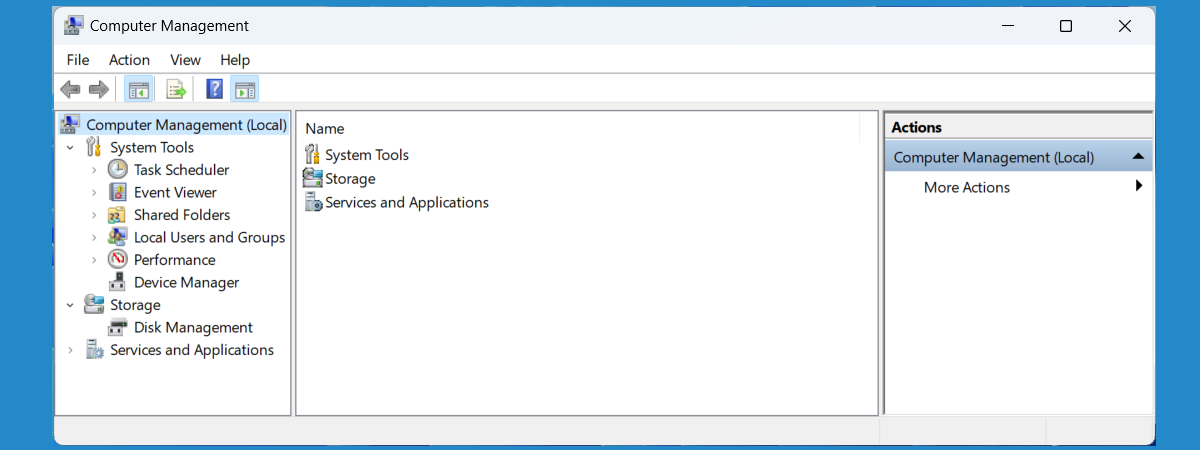
The Computer Management tool is split into three major sections: System Tools, Storage and Services, and Applications. The most substantial section is System Tools, and it includes lots of useful tools.
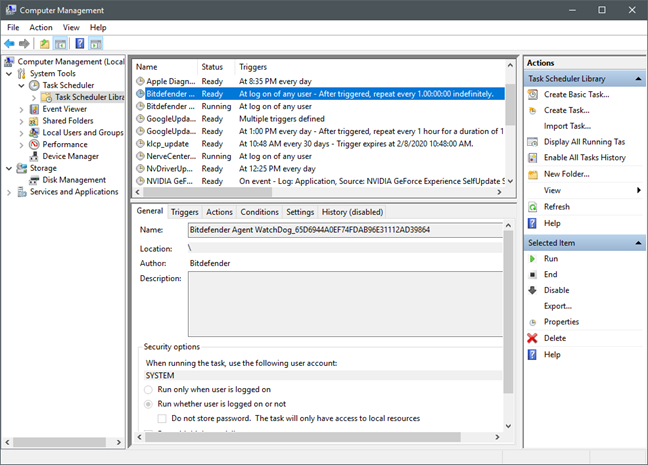
First, there is the Task Scheduler, which allows you to manage all the scheduled tasks and also create new ones. If you want details, we have tutorials on how to work with the Task Scheduler and the simplest is How to browse the Task Scheduler & learn more about existing tasks.
2. Check system events with Event Viewer
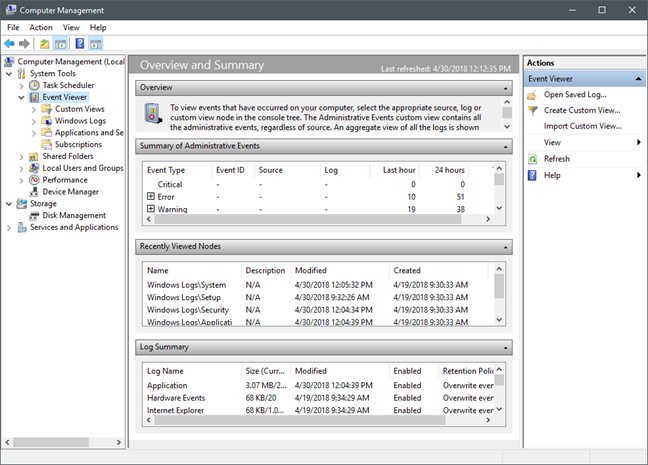
The second tool embedded in Computer Management is the Event Viewer. With it, you can view all the event logs stored by Windows and the applications installed on your computer. You can also create your custom views that show specific data which you can use to troubleshoot specific problems. You can find more details about the Event Viewer in these tutorials:
- The basics of working with the Event Viewer in Windows
- How to work with custom views in the Event Viewer
3. Verify your network shares with Shared Folders
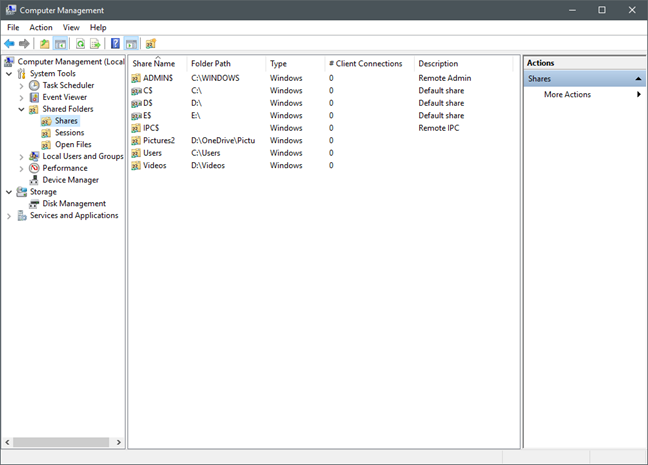
The third tool and one of our favorites is named Shared Folders. It can be used to view all the folders you are sharing with the network, the active sessions and the files opened by others on the network. You can also manage different aspects of your shared folders. Find more details in this tutorial: How to view a list of all shared network folders.
4. Manage user accounts with Local Users and Groups
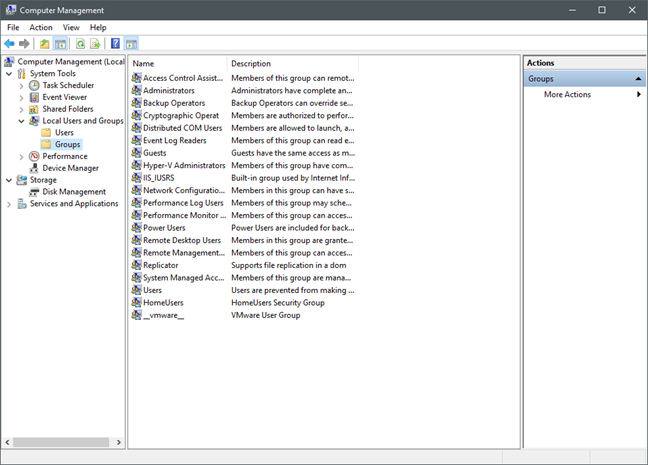
Next, you will find another useful tool: Local Users and Groups. You can use it to manage the user groups defined on your computer, user accounts and their membership to different groups. Note, however, that this tool is not available if you use a Home edition of Windows 7 or Windows 10, or if you use a basic edition of Windows 8.1. We published a tutorial which reveals how to take full advantage of this tool, here: The geek's way of creating user accounts and groups.
5. Analyze your system's performance with Performance Monitor
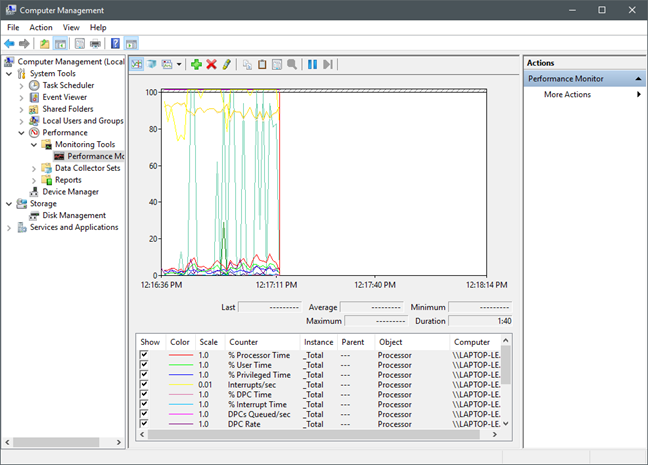
The fifth tool found in Computer Management is the Performance Monitor. It works as a great complement to the Event Viewer when you need to understand how well your system works if there are problems and what is causing them.
You can learn more about this tool, from this tutorial: How to Work with the Performance Monitor in Windows.
6. View and manage drivers with Device Manager
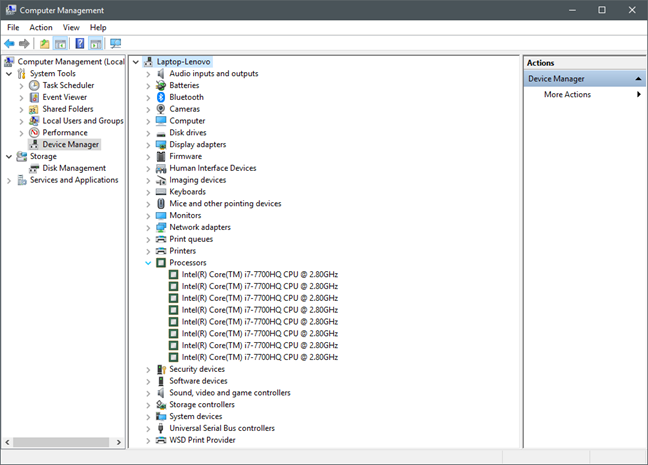
The last tool from the System Tools section is the Device Manager. With it, you can quickly view the hardware components and peripherals that make up your computer and whether there are any problems with them regarding missing drivers. You can find a detailed tutorial about this tool here: Find missing drivers & hidden Devices with Device Manager.
7. Manage disk drives
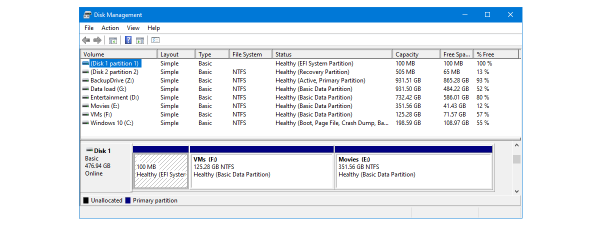
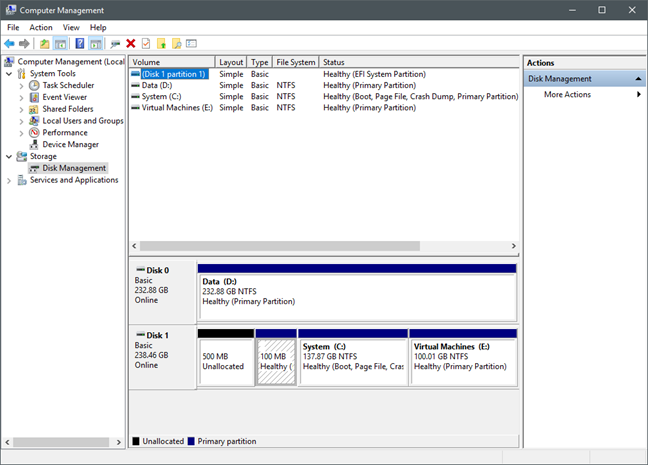
The Storage section contains only one tool: Disk Management. It is an advanced tool that you can use to manage all your disk drives and partitions. We shared some of the coolest tricks that you can perform with it, in the following tutorials:
- How to manage partitions with the Disk Management tool, in Windows
- How to hide or dismount a partition in Windows
- 2 ways to create a partition, in Windows (all versions)
8. Manage Windows services
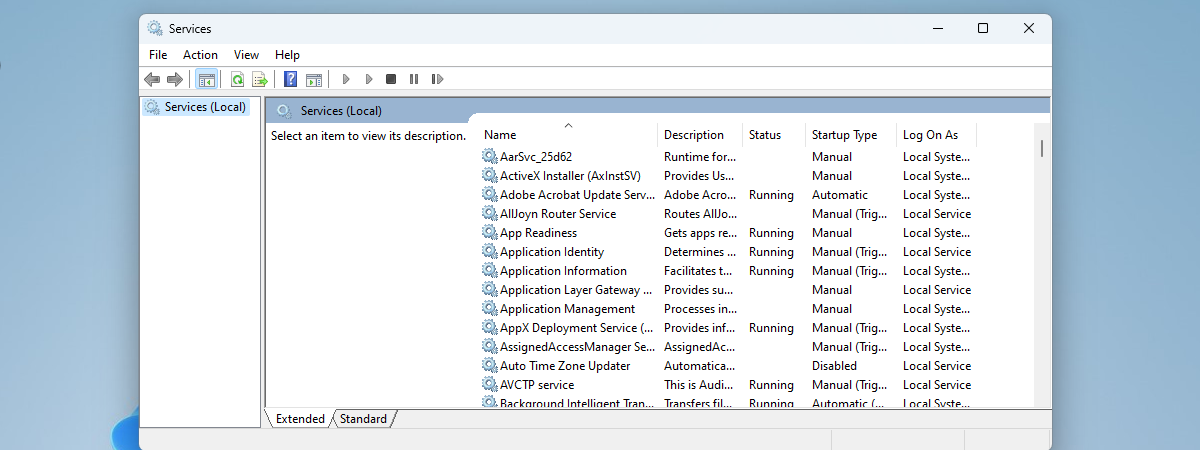
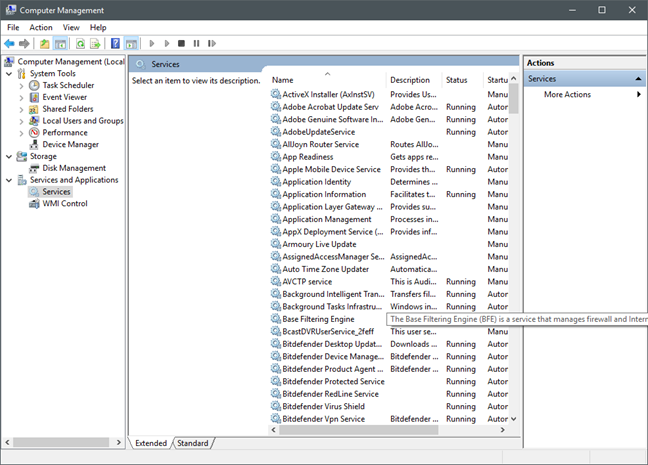
Last but not least, you get the Services and Applications section, from where you can manage all the services found on your Windows computer. You can learn more about services and how to services them, from these tutorials:
- What are Windows services, what they do & how to manage them
- Windows services – Identifying dependencies & changing the startup type
- Which Windows services are safe to disable & when?
Conclusion
As you can see, Computer Management is a great control panel that is filled with lots of useful administrative tools. We prefer it to the Administrative Tools list because it has all the tools we use most, all included in a single app window. We do not have to start each tool in separate windows, and this makes us more productive when setting up or troubleshooting Windows computers. Before you close this article, we invite you to share with us your favorite administrative tools in Windows. Which tools do you use most and why?