Windows 7 and Windows 8 include a great little application you can use to record sounds - Sound Recorder. All you need is a sound card and a microphone plugged in, or a webcam with a microphone built in. Your recordings are saved as Windows Media Audio files and can be played by any media player. To learn how to use this program, don't hesitate to read this tutorial.
How to Launch the Sound Recorder in Windows 7
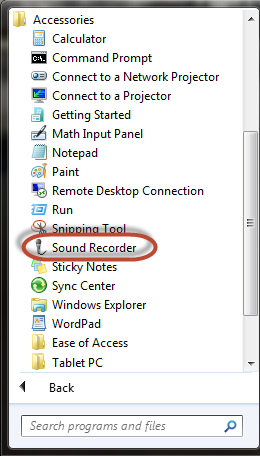
One way to find the Sound Recorder is to go to "Start -> All programs -> Accessories -> Sound Recorder".
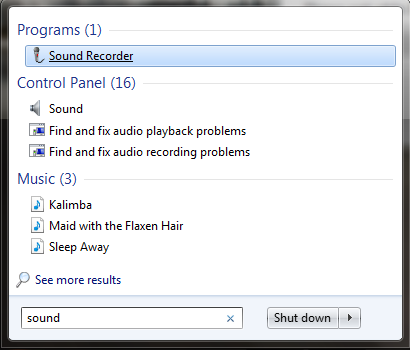
Another way is to type the word sound in the Start Menu search box. In the Programs list of search results, click Sound Recorder.
The Sound Recorder window is very small and basic. In the screenshot below you can see how it looks.

The procedure for opening this program is also very similar in Windows 8.
How to Launch the Sound Recorder in Windows 8
In Windows 8, go to the Start screen. Right click or swipe from the bottom, to bring up the contextual menu. There, click or tap All Apps. In the All Apps list, go to Windows Accessories and look for the Sound Recorder shortcut.
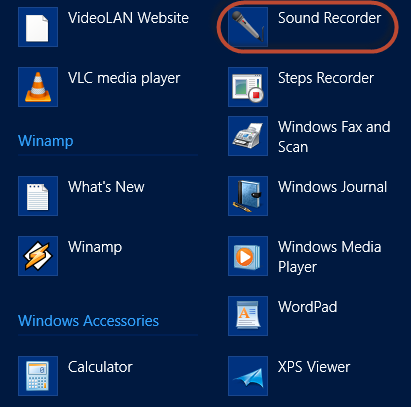
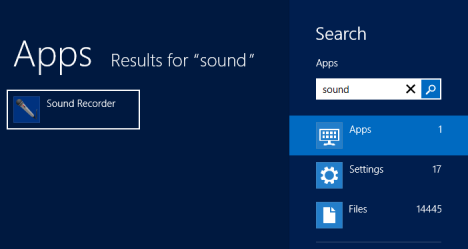
An easier way is to type the word sound directly on the Start screen. The Sound Recorder shortcut is immediately displayed in the Apps list.
The Sound Recorder window in Windows 8 is identical to its Windows 7 version.

How to Start, Stop and Resume a Recording
As soon as you start the Sound Recorder, you can immediately tell if the microphone is working correctly. If sound is detected, the green sound bar will be moving, according to the strength of the sound.

If you notice no movement, plug in the microphone and double check that is working. When the microphone is set up and working, press the Start Recording button.
NOTE: Check our article on how to change the default playback & recording audio device, to learn how to set up your microphone.
While you are recording, you can see the duration of the recording being displayed by the timer, in the middle of the Sound Recorder window.

When you want to finish the recording, press Stop Recording.
You are now required to choose a location and the file name for your recording. The default file extension is wma and the file type is Windows Media Audio. Other file extensions are not supported by this program. Therefore, if you want your recordings stored as mp3 files, you will have to convert them with another program.
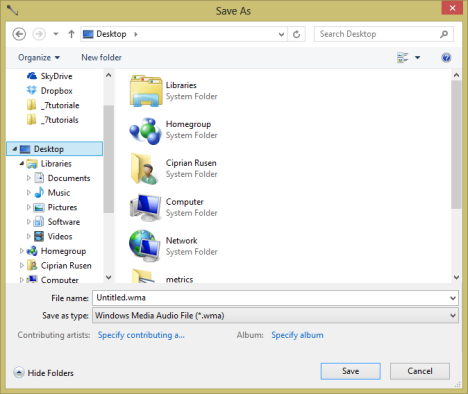
For each recording, you can add details like the contributing artists and the album name. You should complete these fields if there's any value to you doing so.

When done, press the Save button and the recording is saved.
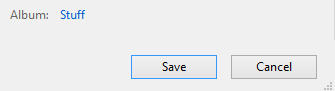
If you want to resume the recording, don't press Save. Click or tap Cancel instead.
You can now press the Resume Recording button.

This will continue the recording from where you left off.
How to Record Audio from the Command Line
You can use Sound Recorder to record a file with a specific duration, without any user interface being shown. It's handy spying tool if you ask me. 🙂
To do this, you need to open the Command Prompt and type the following command: SoundRecorder /FILE filename.filetype /DURATION hhhh:mm:ss.
Here's what each command line parameter means:
- filename - the file's name.
- filetype - the file type must be set as wma.
- hhhh:mm:ss - the duration of the recording, in hours, minutes and seconds.
The command line parameters are case sensitive. For example, you must use /FILE, not /File or /file.
For example, if you want to create a file called test.wma, with the duration of 30 seconds you should write: SoundRecorder /FILE test.wma /DURATION 0000:00:30 and press Enter.
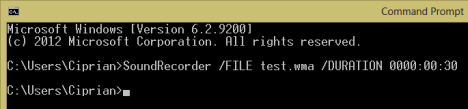
Once you press Enter, the recording will start. It will stop automatically after the duration you have specified. Sound Recorder records any input received from the microphone/recording device.
The Sound Recorder does not show its user interface, nor any prompts. The only clue that it is running, is its icon displayed in the notification area of the taskbar, on the Desktop.
The recording is saved to your User Account folder. If your username is Andrew, the file will be save in C:UsersAndrew. In my case, the file was found in the C:UsersCiprian folder.
Conclusion
As you can see from this guide, Sound Recording is a simple tool which helps you get the job done with just a few clicks. Anyone can use it to record sound.
If you have any questions about this tool or you just want to share the experiences you've had with it, don't hesitate to leave a comment.