You've encrypted your flash drive using BitLocker To Go, and now your data is safe from prying eyes. To anyone without your password, your files are garbled beyond comprehension. Unfortunately, if you lose your BitLocker password, your data stays just as indecipherable to you as it is to others. Luckily, if you saved the recovery key during the initial BitLocker configuration, you should have no trouble unlocking the drive and rescuing your data. Once the drive is unlocked, you can change your password to avoid this issue in the future. In this tutorial, we're going to explain to you everything you can do if you forgot the BitLocker password of a USB drive:
How to recover the data on a BitLocker encrypted USB drive if you forgot its password
If you have a USB drive that you've encrypted with BitLocker and you no longer remember the password for it, there's only one way to access it. You can only do it using the BitLocker recovery key. That's a unique 48-digit numerical password that was created by BitLocker for you when you've encrypted that USB drive. Here are the steps you have to take to access a BitLocker encrypted USB drive if you've forgotten its password:
First of all, plug your encrypted USB drive into a USB port on your Windows 10 computer or device and try to open and unlock it with File Explorer. As you don't remember the BitLocker password for the USB drive, instead of entering it, click or tap on More options.
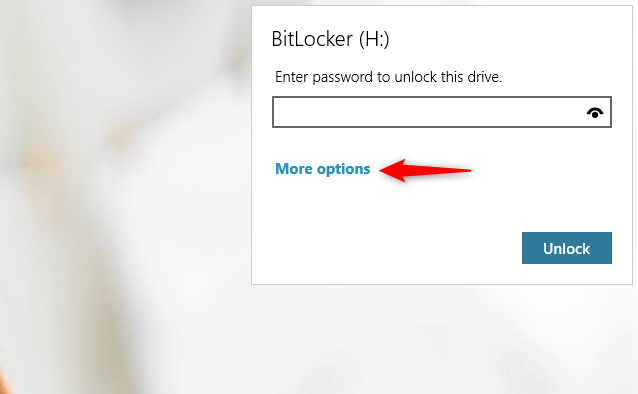
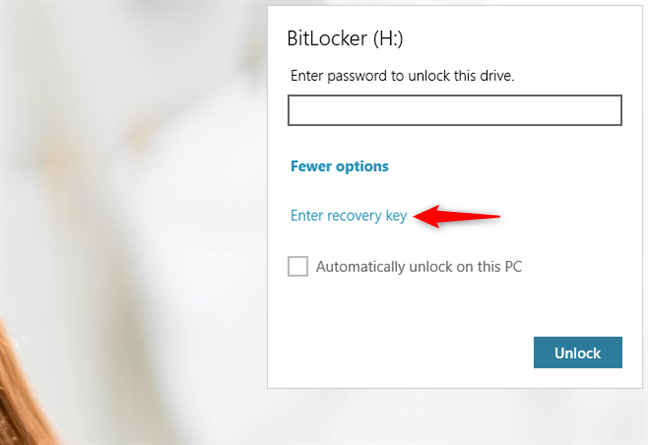
The BitLocker dialog window should then show you an option called "Enter recovery key." Click or tap on it.
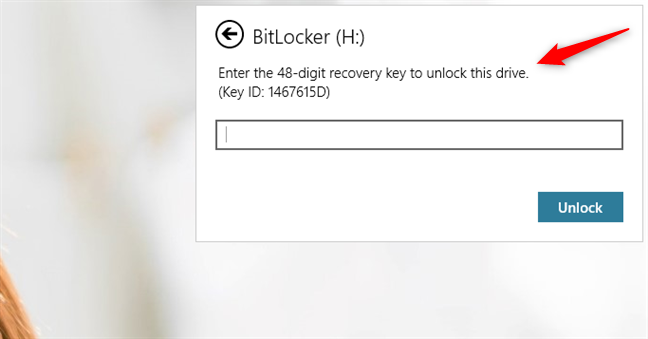
As soon as you do that, BitLocker asks you to "Enter the 48-digit recovery key to unlock this drive."
Depending on how and where you chose to save the BitLocker recovery key, you can find it in several places:
- In a text file
- In your Microsoft account
- On a printout
Here's what to do in each case:
How to use the USB BitLocker recovery key from a text file
If you chose to save the recovery key in a text file when you activated BitLocker on your USB drive, you have to remember where you saved that file and open it. Copy the Recovery Key line from the BitLocker Recovery Key [Drive ID].txt file.
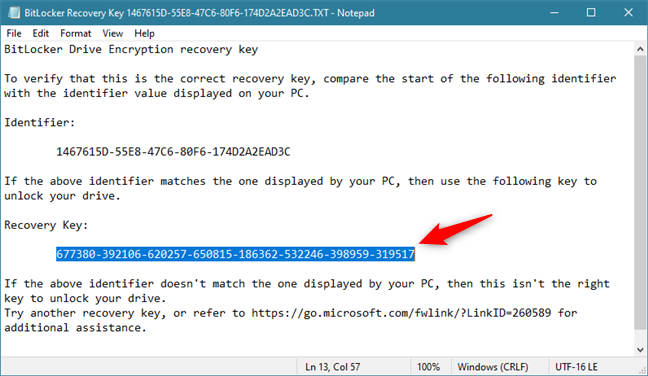
Then, paste the BitLocker recovery key in the USB drive's BitLocker dialog window, and press Unlock.
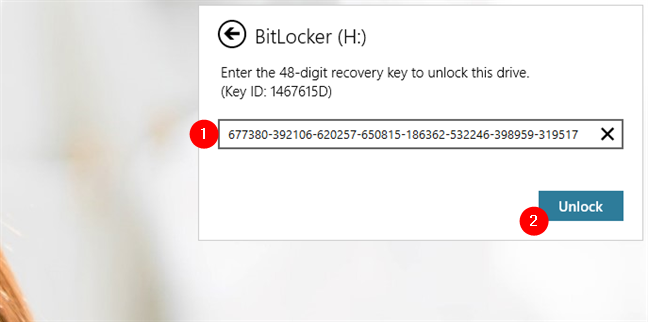
Once the BitLocker recovery key has been accepted, your flash drive opens automatically in File Explorer.
How to get the USB BitLocker recovery key from your Microsoft account
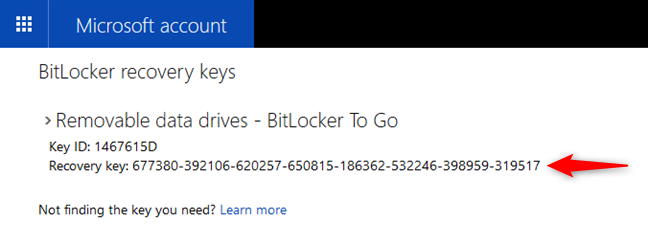
When you've enabled BitLocker on your USB drive, you might have decided to save the BitLocker recovery key in your Microsoft account. In that case, use a web browser to sign in to your Microsoft account and get the key from this section: BitLocker recovery keys. If you have multiple USB drives encrypted with BitLocker, find the one you need to unlock and copy its Recovery key.
Paste the recovery key in the BitLocker dialog window from your Windows 10 PC, and push the Unlock button.
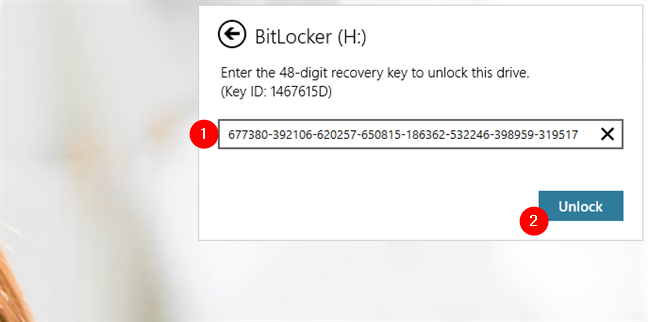
If the BitLocker recovery key was correct, the BitLocker-encrypted USB drive should now automatically open in File Explorer.
How to use the USB BitLocker recovery key from a paper you've printed
In case you've decided to print the recovery key when you've turned on BitLocker on your USB drive, look for that piece of paper. It should look like this:
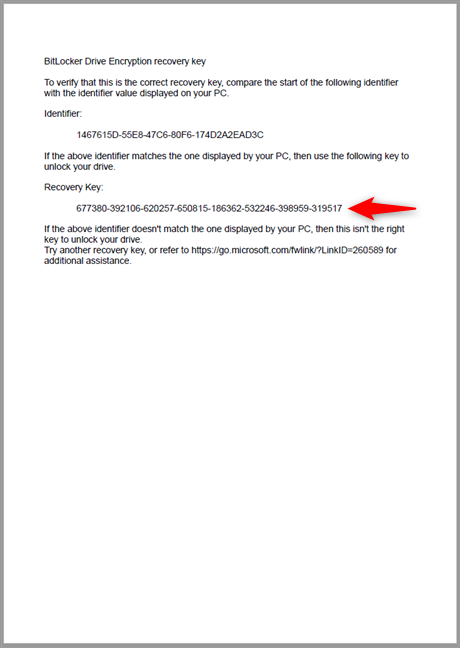
Type the whole 48-digit numerical BitLocker recovery key in the BitLocker popup from your Windows 10 computer or device. Then, press the Unlock button.
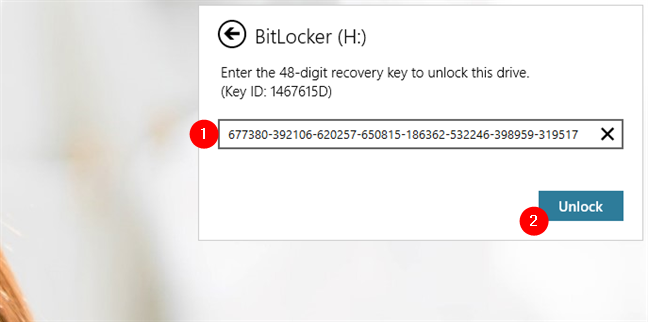
If you've typed the recovery key correctly, File Explorer should now open your encrypted USB drive.
Change the forgotten password of the BitLocker USB drive with a new one
After you gain access to the BitLocker encrypted USB drive, you should consider creating a new password for it. Otherwise, you must re-enter the BitLocker recovery key each time you want to use the encrypted drive. To change the BitLocker password you forgot, open File Explorer, right-click or press-and-hold on the USB drive, and select "Change BitLocker password."
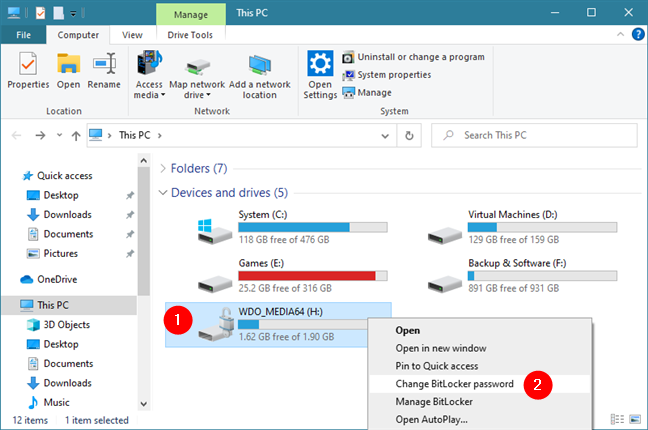
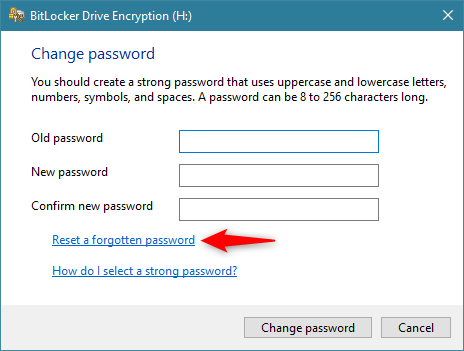
This action opens a window called BitLocker Drive Encryption, where you're asked for the old password before entering a new one. Because you don't know the old password (the reason you are here), you must choose the "Reset a forgotten password" option.
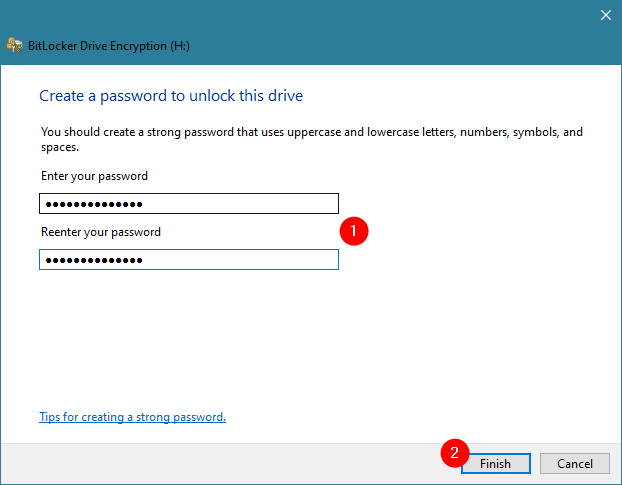
Enter the new password for the BitLocker encrypted USB drive and make sure that you don't forget it again. Once you've entered the password twice, hit Finish.
You should receive a confirmation that the password of the BitLocker-encrypted USB drive was successfully changed, and that's it!
TIP: If you'd rather disable BitLocker altogether for your USB drive, you can do that too. Just follow the steps from this guide: How to disable BitLocker To Go encryption and remove the unlock password.
What if I don't have the BitLocker recovery key for the USB drive? Can I get my data back?
There's also the possibility that you forgot both the password of a USB drive encrypted with BitLocker and it's recovery key. The bad news, in that case, is that the data you had on it is lost forever. The only thing you can do is format that USB drive and use it as new. If you need help with that, check this tutorial: 2 ways to format an SD Card, a USB memory stick, or a hard drive partition in Windows.
Did you manage to recover your BitLocker-encrypted USB drive?
Now that you understand how to rescue your data, even if you've forgotten your password, there should be little holding you back from protecting your data with BitLocker. If you keep your recovery key safe, you should never have any issues getting to your data. Try this helpful feature out and feel free to leave us comments about your experience or to ask questions.