The Start screen was the most important novelty in Windows 8 and it was further improved in Windows 8.1. Even though accessing it is easy, figuring out all the ways to launch it can take some work and experimentation. That's why I decided to create this guide and show all the ways to access it, both in Windows 8 and Windows 8.1
1. Use the Keyboard - works in Windows 8 & 8.1
In Windows 7, the Windows key on your keyboard opens the Start Menu. In Windows 8 and Windows 8.1 it will open the Start screen. Therefore, don't hesitate to use it often. It is the fastest way to access the Start screen.
2. Use the Bottom-Left Corner - Windows 8.1 only
The Windows 8.1 update has brought a very good change from a usability perspective - the Start button is displayed on the Desktop. Click or tap on it and you are taken to the Start screen.
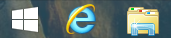
This button can be displayed also when using full-screen Windows Store apps. When using an app, move the mouse (or your finger) to the bottom-left corner of the screen and keep it there for a short while. The Start button will be displayed and it can be used to get back to the Start screen.

3. Use the Bottom-Left Corner - Windows 8 only
The corners of the screen in Windows 8 are very important as they reveal important shortcuts and features. The shortcut to the Start screen reveals itself if you hover the mouse or finger on the bottom-left corner.
A Start thumbnail shows up, as shown in the screenshot below.
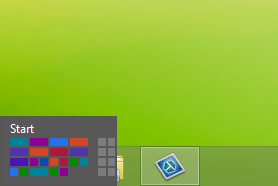
A click or tap on it takes you to the Start screen.
4. Use the Application Switcher on the Left - works in Windows 8 & 8.1
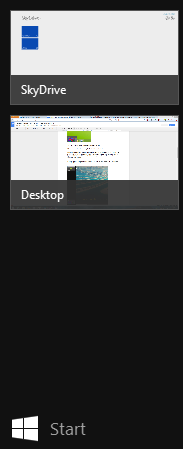
This method is the least convenient but it does work. If you hover the mouse (or finger) on the top-left corner for the screen and then move it downwards, the app Switcher is displayed. At the bottom of the Switcher you can find the shortcut for the Start screen.
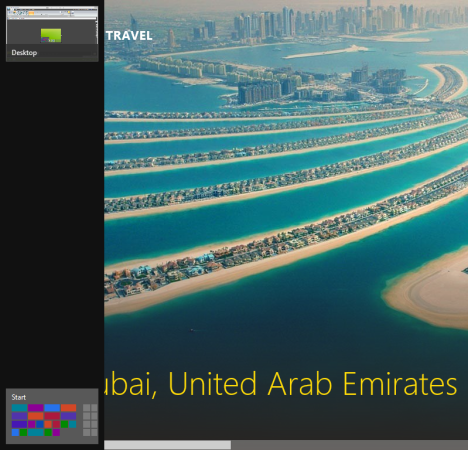
Click or tap on it to go to the Start screen.
In Windows 8.1, the procedure is the same but the switcher looks slightly different and the Start button is very visible.
5. Use the Start Charm - works in Windows 8 & 8.1
If you move the mouse (or finger) to the top or bottom right corner of the screen, the charms are displayed.

Then, move the cursor (or finger) downwards (if you used the top corner) or upwards (if you used the bottom corner) and a black background is displayed for the charms.
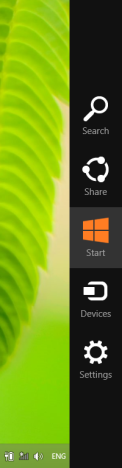
To display them, you can also use the keyboard and press Windows + C. Then click or tap the Start charm.
6. Use the Show Start Shortcut File - Windows 8 only
If you are a Windows 8 user, you can download our special shortcut and place it on the Desktop.
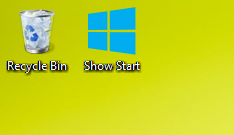
You can download it from here: Download the Desktop Shortcut to the Windows 8 Start Screen.
You can use the same shortcut to right click (or press and hold) and select Pin to Taskbar.

Now you have the Show Start shortcut directly on the taskbar, just like in Windows 8.1
Conclusion
Don't hesitate to take some time to experiment and then stick to the methods that work best for you. Below you can find other useful tips and tricks about Windows 8 and Windows 8.1 so don't hesitate to read them.