Windows has always been able to tell you nearly everything you want to know about your computer: hardware, software, drivers, you name it. System Information puts all the information neatly at your fingertips. Let's take a look at this useful Windows app and what it can show you about your computer, in all modern versions of Windows:
NOTE: This guide applies to Windows 10, Windows 8.1 and Windows 7.
How to open System Information
In any modern version of Windows, you can use the search function to find and open the System Information app. Use the search terms "system information" or msinfo32 and click/tap on the result with the same name.
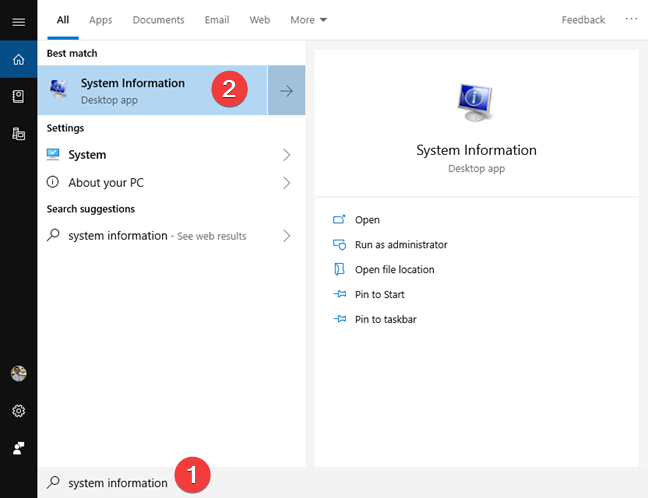
For a complete guide on all methods to open System Information see 10 ways to start System Information in Windows (all versions).
What is inside the System Information
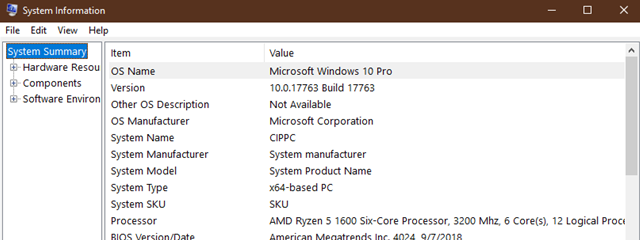
When System Information opens you see a summary of your system that includes things like the OS Name, Version, System Name, System Manufacturer, and so on. If you read the summary, you understand the basics about your Windows computer or device. On the left, there are several categories. Each category in the left pane has expanded details on the right. The main categories are Hardware Resources, Components, and Software Environment.
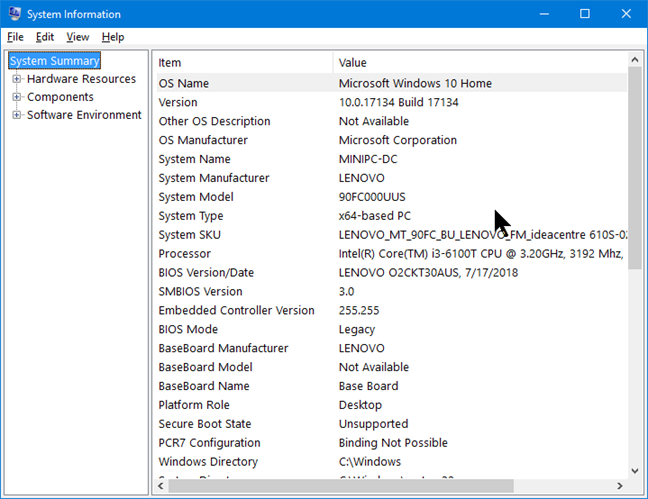
To expand a category and see its details, double-click or double-tap on its name. You then see several subcategories. Clicking on their names loads useful information on the right side of the app window.
How to use the Search feature to find the information you want, inside System Information
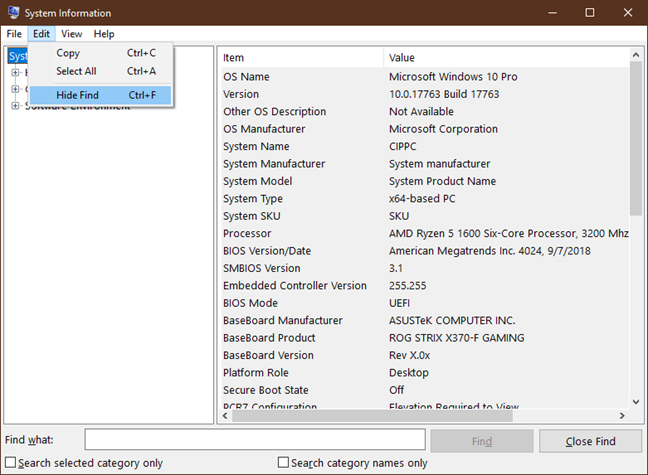
At the bottom of System Information, there is a Find what box, where you can search for specific information. If the box is not displayed, select "Hide Find" in the Edit menu or press CTRL + F on your keyboard. You can hide it again using the same procedure. You can also hide the search box by pressing the Close Find button.
For example, if you wanted to find your computer's IP (internet protocol) address, you would type IP Address into the box and click/tap Find. In this particular case, you may need to press Find Next a few times until the active network connection is found.
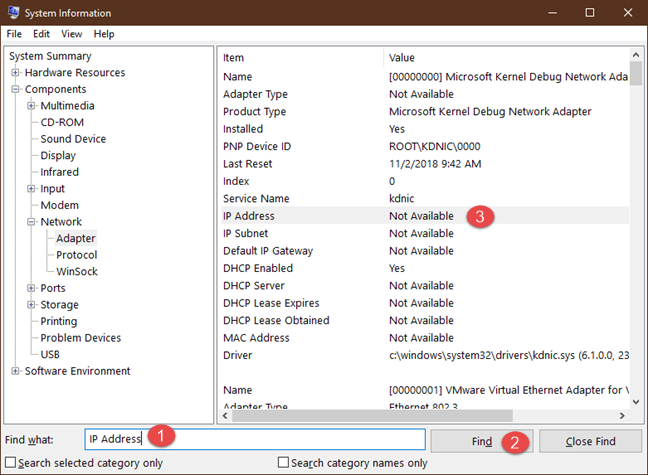
Try the search feature using the keywords that you want, to see how it works.
How to see details about hardware, using System Information
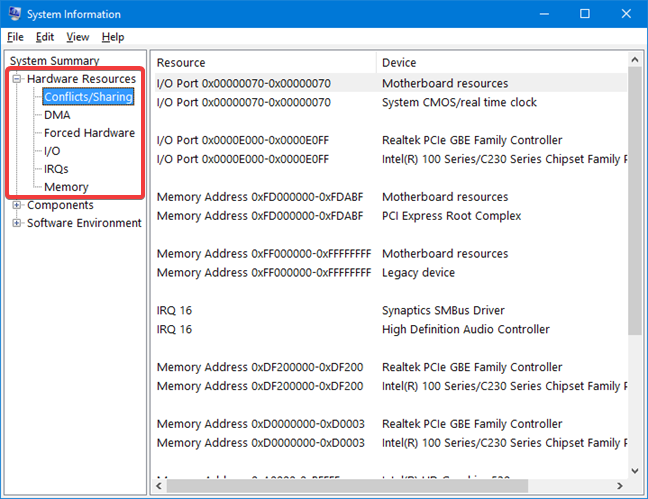
The Hardware Resources category is full of technical details. It is primarily designed for expert users or IT professionals. The average user may not find anything useful without looking up exactly what the technical terms mean.
There is a section called Conflicts/Sharing that might or might not contain anything, depending on how your system is set up. In the DOS days and the early days of Windows, IRQ ("interrupt request") conflicts were a big deal and often you would have to twiddle and fiddle and shift things around so that your devices would not be fighting each other for the same resources. That is not a problem anymore, so the Conflicts/Sharing section is just for information, not a warning of problems.
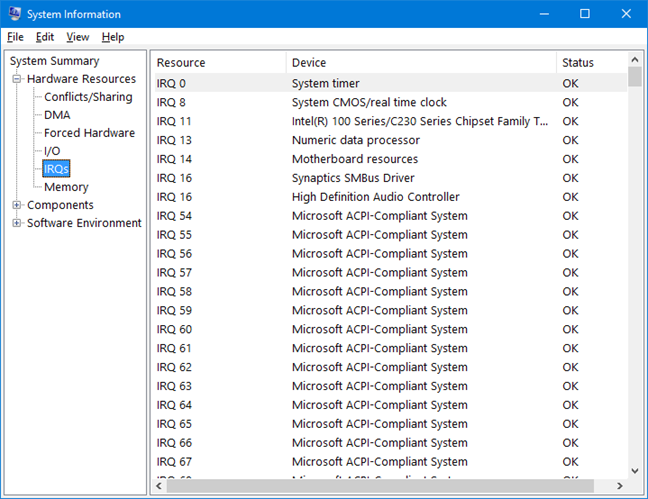
If you want to find out more about what IRQs are assigned, click or tap on the IRQs section.
The Components section in System Information goes into detail about the hardware devices installed on your system. On our computer, Multimedia only displays the audio and video codecs, which is not something you need to worry about, especially if media files play fine in Windows Media Player or the Movies & TV app.
The Display section is more interesting. Here you can find information about the resolution used on your display and the name of the graphics adapter used to connect to it.
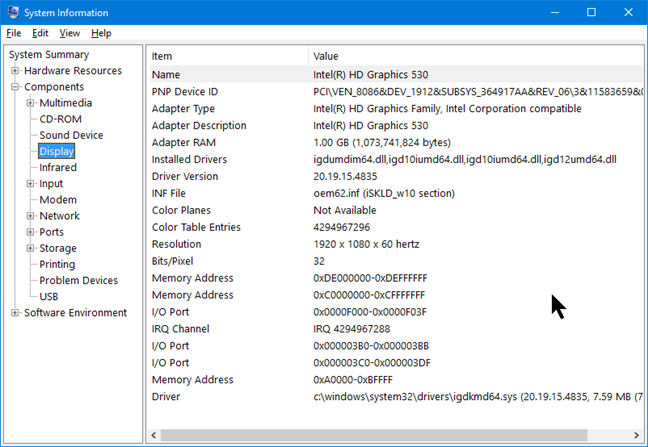
The other subcategories are similar. You can get full details about your mouse, keyboard, infrared input devices (if any), hard drives, optical drives, modem (if you still have one), network adapter and so forth. The section called Problem Devices is much like the Conflicts section because Windows handles hardware problems well and the section is empty most of the time.
How to see details about the software and its components, using System Information
The Software Environment section looks different on every computer, because this is where you see all the details about the software that you have installed, both what came with the operating system and what you have added on. As with the Hardware section, much of this information is only of interest to advanced users or IT professionals, and some of the categories are things like program groups, startup programs, print jobs, and running tasks, which most people already know about. Still, it is useful to have all this information in one place.
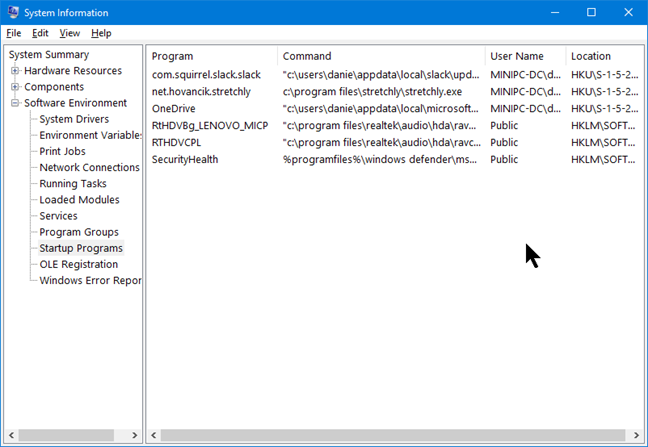
An interesting place is the Startup Programs sub-section. You can check it to make sure you start only the programs you truly need at the Windows Startup.
Why do you need to check System Information?
It is true that a lot of what you see might not mean much at first glance, but System Information is a good way to find out what is on your Windows computer. Unlike what can happen with some other administrative applications, you cannot put your computer in any danger by poking around in System Information, because it is just a viewer of information. You can use the System Information tool to quickly learn many useful things, like your IP address, the tasks that are running and their details, the programs that run at startup, details about your network adapter, or what video card you have and the driver installed for it.
What did you find out about your computer in System Information?
There are quite a few websites offering add-on "system information" tools, but few that we have seen offer much more than the built-in System Information. Have you used System Information? Was there any part of it you did not understand? Is there a section you found particularly useful - or too cryptic to be any use at all? Leave a comment below and let's discuss.