What do you do when you have to insert special characters that can't be found on your keyboard? You use the Character Map tool found both in Windows 7 and Windows 8. It allows you to insert scientific notations, mathematical operators, currency symbols and characters from languages like Japanese Hiragana , Katakana, Korean Hanji and others. In this tutorial, I will show how to find the Character Map, share a few ways of searching for a character and how to copy characters to any Windows application.
Were to Find Character Map in Windows 7
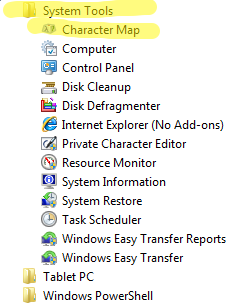
There are several ways of finding Character Map. One is to go to 'Start Menu -> All Programs -> Accessories -> System Tools -> Character Map'.
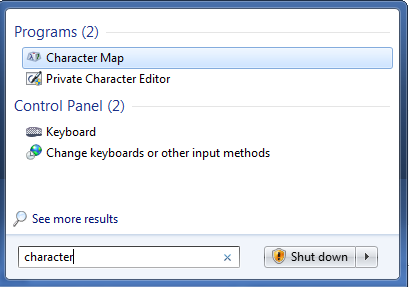
Also, you can type the word 'character' in the Start Menu search box and click Character Map.
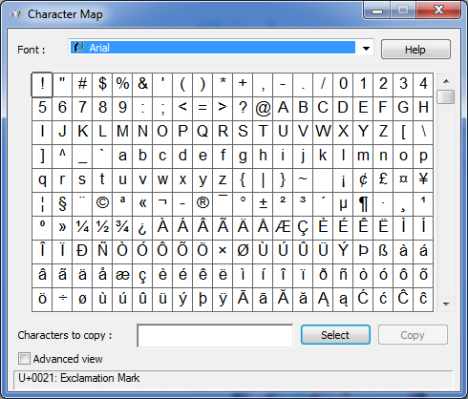
When opened, the Character Map window will look similar to the one below.
Were to Find Character Map in Windows 8
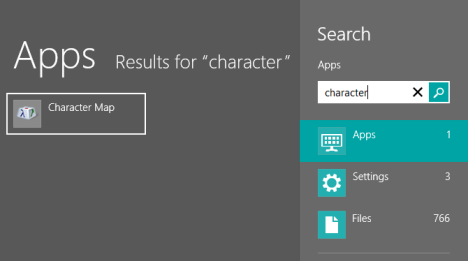
In Windows 8, the fastest way to launch this tool is to search for the word 'character', directly on the Start screen. Then, click or tap the appropriate result.
Alternatively, go to the Start screen and right click or swipe from the bottom, then click or tap All apps. Scroll right until you find the Windows Accessories folder.
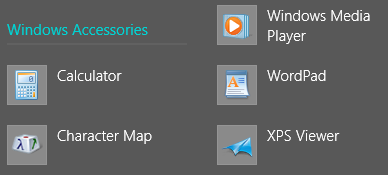
There, click or tap Character Map, to open the application.
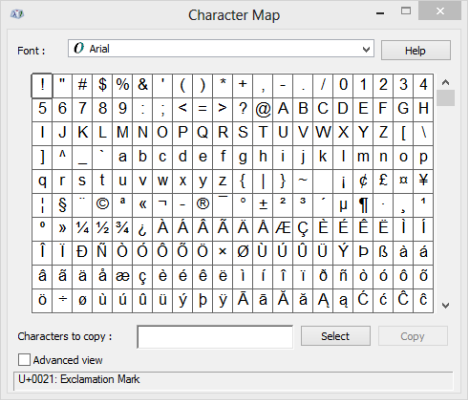
As you can see, it looks identical to the Windows 7 version and behaves in a similar way.
Find & Copy Characters Using the Basic View of the Character Map
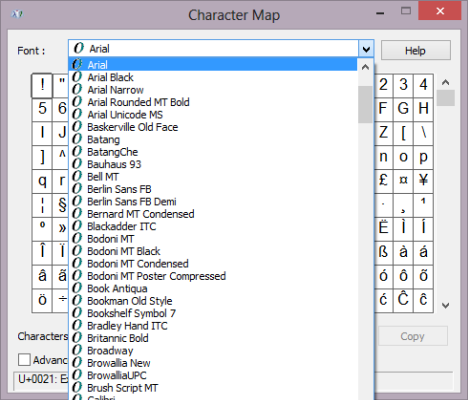
Characters in Character Map are grouped by Fonts. Click or tap the fonts drop-down list to choose one.
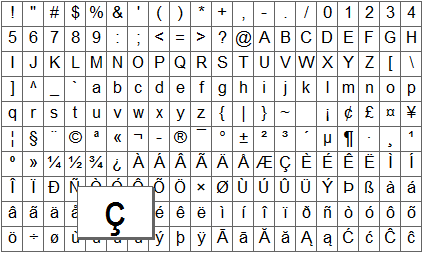
Click or tap a character to see it magnified.
When you select a character, you can view the its name and keystroke, at the bottom of the Character Map window.
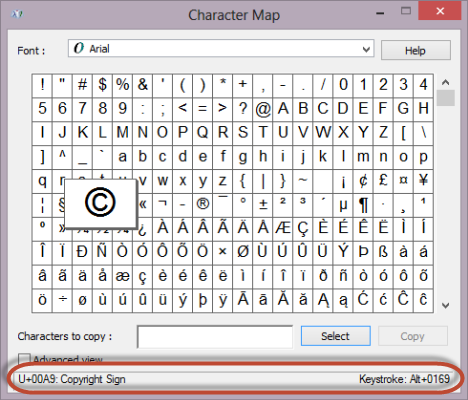
The keystroke represents the combination of keys that you can press to insert the character into any document, without manually copying the character from Character Map. If you need to use a symbol many times, using the keystroke can be very useful.
All keystroke combinations have this format: the 'Alt' key followed by a 4-digits number. To use a keystroke, make sure the 'Num lock' is on. Hold down the 'Alt' key and, in the numeric pad type the number code. When you release the 'Alt' key, the symbol appears in the document.
Important Note: The symbols can be inserted only by using the numeric pad.
You can also copy a character without using the keyboard. To do this, first click or tap the symbol you want to copy. Then, click or tap Select or double-click the symbol. The character will appear in the 'Characters to copy' box. Click or tap Copy and then paste it where you want.
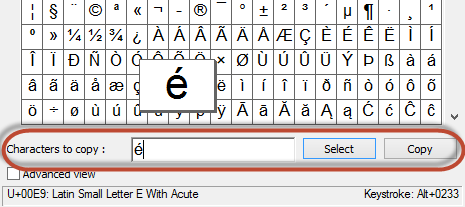
You can also select multiple characters to copy. Choose the ones you want by double clicking on them (or selecting them) one by one.
You will see the symbols being added to the 'Characters to copy' field. When done selecting them all, click or tap Copy.

Now you can paste them to any application or document.
Find &Copy Characters Using the Advanced View of the Character Map
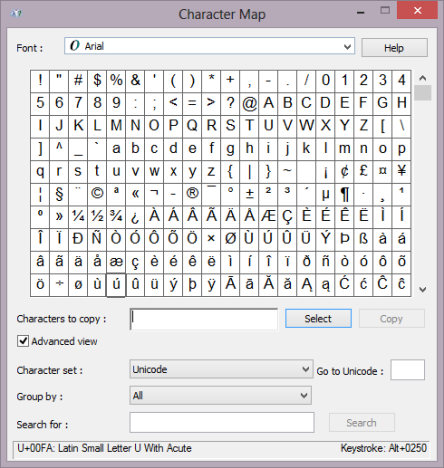
To open the additional controls, check the box named 'Advanced view'.

This opens an additional list of options, at the bottom of the Character Map window.
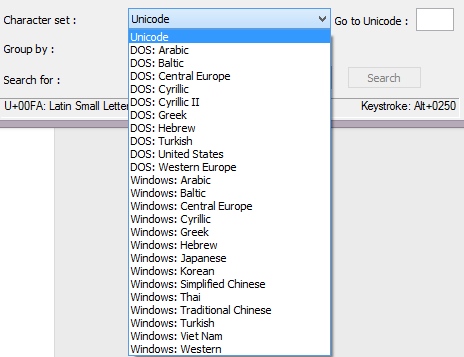
Each character set provides support for different character encodings, specific to different languages or groups of languages like Arabic, Baltic, Cyrillic, Greek, Japanese, Thai and others. Click or tap the 'Character set' drop-down list to see the options it has to offer.
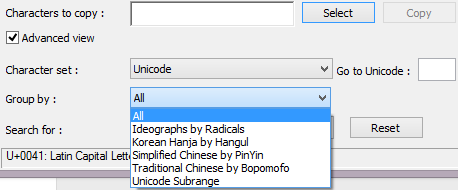
Character Map allows you to group symbols by different criteria. For example, Chinese, Japanese and Korean characters are grouped by the way they sound. Click or tap the 'Group by:' drop-down list to choose between the available grouping options.
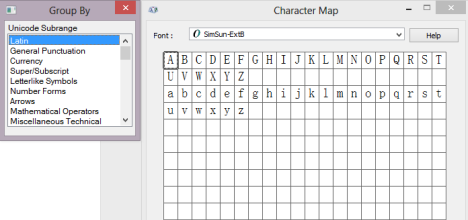
Click or tap different the options from the 'Group By' window to see the corresponding symbols in Character map.
If you know the name of a character, or part of it's name, type it in the Search for field and click or tap Search.
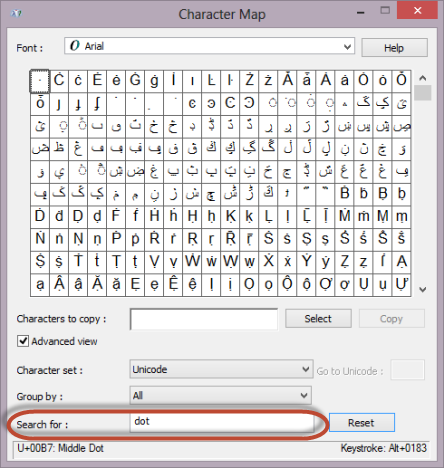
For example, if I'm looking for a symbol that contains a dot, I can type dot and see all the characters that have the word dot as part of their name.
To reset your search terms, click or tap Reset.
Conclusion
As you can see from this guide, Character Map allows you to find all the symbols available with each font installed in Windows. Try it out when you need to work with special symbols in your documents and let us know how it works. Have you learned any useful tricks about using this tool? If you did, don't hesitate to share them. Unfortunately there's very little information available about this tool. Anything you learn is worth sharing with others.