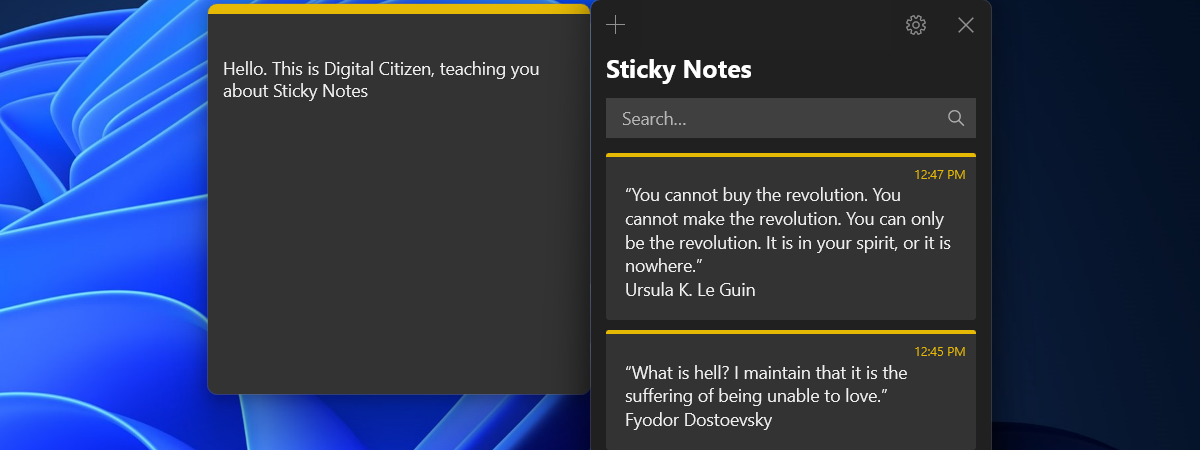
If you are using Sticky Notes for quick note taking on a regular basis, we would like to help you take things to the next level and show a few advanced techniques for working with Sticky Notes. In this article we'll show you how to restore the delete dialogue box if you have set it to be hidden, how to backup your notes and how to copy text from other applications to Sticky Notes while maintaining the formatting.
How to Restore the Delete Dialogue Box
If you have opted to not have the confirmation box displayed when deleting a note, by selecting "Don't display this message again", and you would want to get it back, you have to follow these steps while being logged in with a user account that is set as administrator:
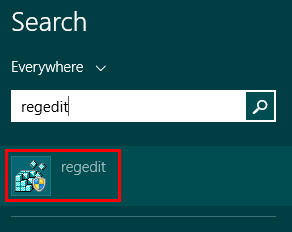
First, open the Registry Editor. In order to do this type the word "regedit" in the Start Menu search box of Windows 7 or directly in Windows 8.1's Start screen and choose the "regedit" search result.
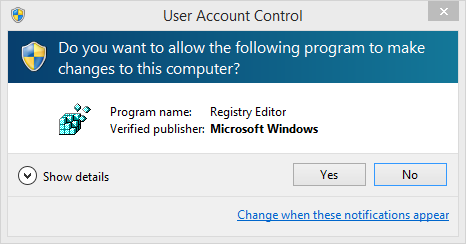
Now, you'll receive a UAC (User Account Control) prompt. Click or tap Yes to continue.
Next, navigate to the following key: "HKEY_CURRENT_USERSoftwareMicrosoftWindowsCurrentVersionAppletsStickyNotes".
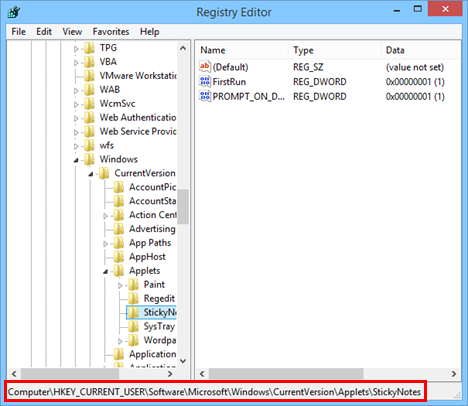
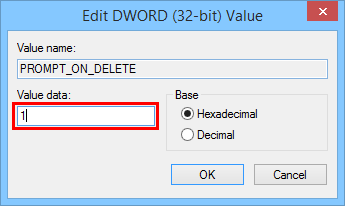
Now, you have to delete the key called PROMPT_ON_DELETE or set its value to 1, then click or tap OK and exit.
For those of you who would like an easier way to restore the dialog box, just download the file we attached to the bottom of this article, called StickyNotes.reg. Once the download ends, open the file.

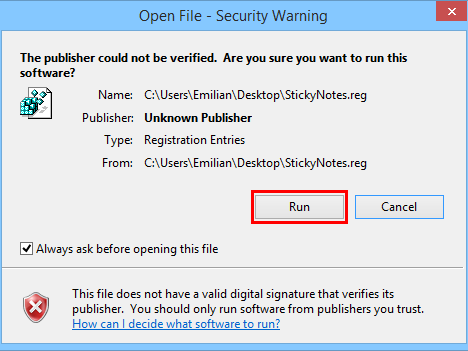
You will receive a Security Warning. Click or tap Run to continue.
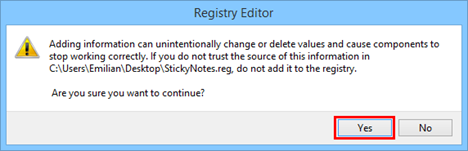
Confirm the action by pressing the Yes button.
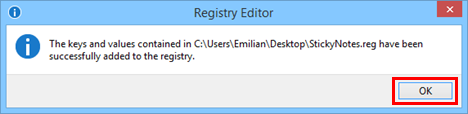
Finally you will get a confirmation message that the change has been done.
The result will be the same but much faster and faster: you will have the delete dialog box with just a few clicks.
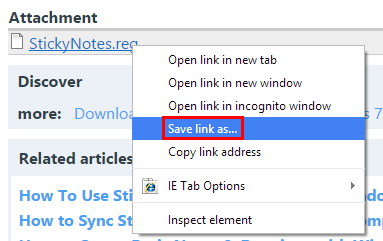
IMPORTANT: In order to download the StickyNotes.reg file, press and hold or right-click the attachment and then select "Save link as".
How To Backup Your Sticky Notes
If you want to backup your notes or send them by email, you can do this by browsing to "C:UsersYour USERNAMEAppDataRoamingMicrosoftSticky Notes" where your username is the name of your user account. Copy the "StickyNotes.snt" file to a USB drive, for example. If you just want to create a backup, you can copy the file to a folder you've previously created on your computer.
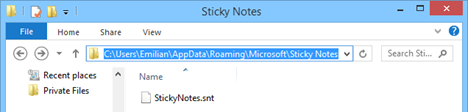
IMPORTANT: To view the content of the folder you need to enable "Show hidden files, folders and drives" in Windows/File Explorer. Just in case you don't know the exact steps on how to do this, check out this tutorial.
How to Add Formatted Text Into Your Sticky Notes
Those of you who are not happy with the standard fonts used by Sticky Notes can use other text editing applications like Microsoft Word, Microsoft Wordpad and so on. You can type your short notes in these editors, select the preferred fonts and formatting and then copy and paste them to Sticky Notes. When you do this, the text format will be transferred to your note.
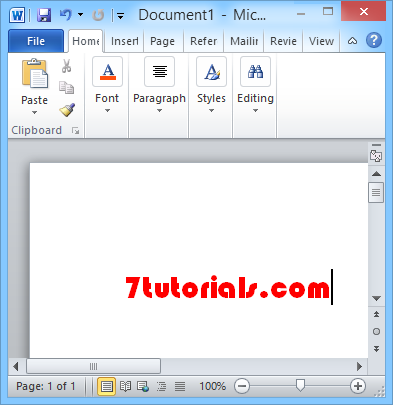
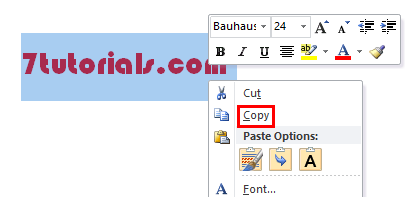
Just select the text from the text editor, press and hold or right-click it and select Copy from the contextual menu or use the shortcut keys "CTRL+C".
Right-click (or press and hold) the note and select Paste or use the "CTRL+V" shortcut key. You'll have the custom text transferred to your note.

Conclusion
These little tips & tricks are designed to help you better use Sticky Notes and improve your experience with it. If you have other tips to share, or any questions or problems, don't hesitate to leave a comment below.
DOWNLOAD LINK: StickyNotes.REG.